
A small organisation under pressure to improve accessibility can be forgiven for being tempted by an overlay. The pitch is compact: add one script, display a floating button, let visitors change contrast, text size, or colour, and call the problem handled. It feels cheaper than revisiting templates, forms, editorial habits, and the component library.
But a control panel placed on top of a site does not change the site’s underlying structure. It cannot reliably give an image a useful text alternative, turn an unlabeled input into a clear question, restore a missing focus order, or make a custom control behave like a native button. It may offer a person a few preferences. That is different from making a service usable.
Accessibility is not a layer of optional personalisation. It is a quality of the product itself. W3C frames web accessibility as designing and developing websites, tools, and technologies so people with disabilities can use them. For a small team, that definition is more useful than the promise of a shortcut because it directs attention to decisions the team actually controls.
🧭 Start with the service, not the floating widget
The first mistake is to define accessibility as a checklist attached to a finished interface. Accessibility starts earlier, with the question: can someone complete the reason they came here? They might be trying to read a notice, compare a service, make an appointment, pay an invoice, submit an application, or contact support. The route matters more than the decorative shell around it.
An overlay often begins from a narrow premise: if a visitor can alter the display, the experience is accessible. Display controls can be welcome when they are thoughtfully built. Browser zoom, operating system settings, reader modes, and user preferences already do valuable work. But text enlargement does not explain a mysterious icon. A contrast switch does not make a menu reachable by keyboard. A screen reader cannot infer the relationship between an error message and the field that caused it just because another script has been added to the page.
The distinction becomes clear when a real journey is mapped. Take an ordinary sign-up flow. A visitor needs to find the account option, understand what information is required, enter it, correct a mistake, learn whether submission worked, and recover if something fails. Every stage has structural requirements. The link or button needs a clear purpose. The fields need labels and instructions. Validation needs to identify the problem in text. Status updates need to be conveyed in a way that assistive technologies can discover. The confirmation must say what happened. No single control panel can repair all of those relationships after the fact.
Small teams do not need to begin with an exhaustive inventory of every page. Begin with the pages that carry the organisation’s essential promises: the home page if it is a navigation hub, a service page, contact and booking routes, account access, payment, forms, and any high-traffic notice. Walk each route as a visitor would. Write down the goal, the actions required, the moments where information changes, and the point at which success is clear. This produces a practical accessibility backlog instead of a vague aspiration.
The U.S. Department of Justice guidance on web accessibility makes a similarly direct point: businesses and state and local governments have a range of existing legal obligations, and web content should be accessible to people with disabilities. Its practical advice points organisations toward ensuring people can access goods, services, programs, and activities online. The important lesson for a small team is not to hunt for a magic badge. It is to make the actual service work.
A useful internal question is: if the floating button vanished, would a keyboard user, a screen reader user, or a person who needs more time still be able to finish the task? If the honest answer is no, the priority is the page beneath the button. That question cuts through sales language and gives product, design, and engineering teams something concrete to fix.
🪟 Why a layer cannot rewrite the page beneath it
Accessibility overlays vary in capability, so it is not accurate to say every tool is useless. A preference panel may help a visitor adjust a presentation choice. A monitoring tool may find some recurring defects. A team may use a third party component responsibly for a specific, tested purpose. The problem is the claim that a client-side layer can make a website accessible in the broad sense when the original content and interaction patterns remain flawed.
HTML carries meaning as well as appearance. A heading identifies a section. A button initiates an action. A form label names an input. A table expresses relationships between rows and columns. A link takes someone to a destination. Assistive technology can use that information because browsers expose it through their accessibility interfaces. When a page is built with meaningful native elements, much of the essential behaviour is available by default.
A script loaded late in the page lifecycle has limited knowledge of authorial intent. It may see a generic clickable container, but it does not know whether it opens a dialog, moves to another page, expands details, starts a purchase, or performs a destructive action. It may detect an image, but it cannot determine whether it is decorative, a product image, a chart, a logo, or evidence supporting a claim. It cannot invent a concise, accurate alternative text description without access to the surrounding meaning and editorial purpose.
W3C’s writing guidance asks authors for descriptive headings and links, short sentences and paragraphs, and clear instructions. Those are content decisions. An overlay cannot reliably recover that meaning after publication. Timing adds another problem: a page can be announced as it loads, while dynamic content changes during filtering, errors, and completion. Names, roles, states, and keyboard behaviour need to be right at the moment of interaction.
W3C’s ARIA Authoring Practices Guide explains how to create accessible patterns when native HTML does not supply a needed interaction. It does not present ARIA as a substitute for basic semantic markup. Its patterns define keyboard interaction, focus management, roles, states, and properties for specific widgets such as dialogs, menus, tabs, and comboboxes. That level of detail is the point. A custom component is not repaired by sprinkling attributes on it. It needs behaviour designed, implemented, and tested as a whole.
A layer can also create competing controls. Its launcher may appear early in keyboard order, trap focus, or conflict with browser, operating system, speech input, or assistive technology commands. Untested colour or spacing changes can hide content or make controls overlap. Adding an interactive system to an inaccessible page expands the number of things that must work.
🧪 Test a route before buying a promise
A credible audit does not begin and end with an automated score. Automated checks are useful because they catch repeatable problems quickly: missing form labels, duplicate IDs, some contrast failures, absent document language information, and invalid ARIA use. They are part of a disciplined workflow. They are not a verdict on whether a person can use the service.
WCAG 2.2 offers a structure that makes this easier to explain inside a small organisation. Its guidance is organised under four principles: content must be perceivable, operable, understandable, and robust. Those principles are broad enough to guide product decisions and concrete enough to expose gaps. A page that looks attractive but cannot be operated from a keyboard fails an essential test. A perfectly focusable form that gives unclear instructions may still be difficult to understand. A page that works in one browser but exposes misleading information to assistive technology has a robustness problem.
Turn those principles into short route tests. Start with the keyboard. Unplug or ignore the mouse and use Tab, Shift+Tab, Enter, Space, arrow keys where a control pattern requires them, and Escape where a dialog or menu should dismiss. Check whether the focus indicator is visible, whether focus moves in a sensible order, whether every action is reachable, and whether opening a component leaves the user somewhere predictable. Then repeat the route at browser zoom. Reflow, clipping, horizontal scrolling, overlapping controls, and missing information often reveal a layout that only worked at one assumed viewport.

Next, inspect names and instructions. A screen reader test is valuable, but the first questions can be simpler: what would a person hear when focus lands here? Does a button’s visible text match its accessible name? Would a link still make sense if listed without the nearby paragraph? Does an input expose a label, required status, format instruction, and error in a way that identifies the field? These questions force the team to examine the experience rather than merely the code.
Use real tasks and record the outcome. “Keyboard navigation tested” is too vague to lead to a repair. “A user cannot reach the date picker’s next-month control with Tab” is actionable. “The error message says ‘invalid’ without naming the field or the needed format” gives a writer and developer a shared problem to solve. “Focus returns to the page top after the filter closes” identifies a behavioural defect. Capture the browser, page, exact action, expected result, observed result, and severity.
A small sample of people who use assistive technology can expose barriers no scan will describe. Their role is not to validate a product after the team has finished. Involve them as paid contributors where possible, with a clear task and enough time to describe what happened. Their feedback can show whether a technically tidy pattern is still confusing in context. It can also keep a team from mistaking compliance language for comprehension.
Testing should be built into ordinary release work. A new marketing page can be reviewed for heading order, link purpose, image text alternatives, and colour use before publication. A new component can have keyboard expectations and accessible states defined before it becomes a reusable dependency. A form change can include an error-state check, not just a successful submission check. This is less expensive than rediscovering the same flaw across dozens of pages later.
⌨️ Fix keyboard and focus before polishing preferences
Keyboard access is one of the clearest places where a site either works or does not. WCAG 2.2 includes requirements intended to ensure functionality can be operated through a keyboard interface. The principle is practical: a person who does not use a mouse must be able to reach and use essential controls without being stranded.
Start with native controls. Use a button element for an action and an a element for navigation. This is not a stylistic preference. Native elements bring established keyboard behaviour, focusability, and semantics that browsers and assistive technologies recognise. A generic clickable container can be styled to resemble a button, but styling does not supply the interaction contract. Rebuilding that contract correctly takes care.
When a custom widget is genuinely necessary, the ARIA Authoring Practices Guide is a working reference, not decoration. A dialog needs more than a visible box. Focus should move into it when it opens, keyboard users must be able to operate and dismiss it, and focus should return appropriately when it closes. A disclosure control needs to communicate whether its content is expanded. A tab pattern needs the keyboard behaviour expected for tabs. A menu pattern is not simply a row of links with a menu role added to it.
Focus deserves design attention. It answers the basic question, “Where am I?” when a person moves through a page without a pointer. Remove a browser’s focus outline only if an equally clear replacement is provided. A subtle colour change that vanishes against an image or low-contrast background is not enough. The indicator needs to remain visible across themes, states, and component variants. Test it on buttons, links, inputs, cards, menus, and the overlay itself if one remains.
Focus order should follow the visual and logical sequence of the task. CSS can move elements around on screen, but the document order may still send a keyboard user somewhere unexpected. A layout that puts a related help link beside a field visually but much later in the DOM creates needless hunting. Modal dialogs are a frequent failure point because focus can escape into content hidden behind the dialog, or disappear after dismissal. Treat these as route-breaking defects rather than edge cases.
Avoid keyboard traps. A person needs to be able to move into and out of all components using ordinary keys. The exception is a properly implemented modal dialog, where focus is intentionally contained while the dialog is active, paired with an available close action and sensible return focus. A trap caused by an animation, embedded widget, or inaccessible menu is different. It is simply a blocked path.
Touch and pointer interactions need alternatives too. Dragging, hover-only reveal actions, and tiny targets create barriers for many people. WCAG 2.2 includes additional success criteria that address focus visibility, dragging movements, target size, and consistent help, among other topics. A team does not need to memorise every criterion before acting. It can ask direct product questions: can this action be completed without dragging? Does essential information appear only on hover? Is the focused control obscured by a sticky banner? Is a support path presented consistently?
Do not use keyboard testing as a one-time compliance ritual. Make it part of acceptance criteria for every reusable interaction. “Can be reached, operated, understood, and exited by keyboard” is a better component definition than “matches the mock-up.” A team that fixes this foundation will also reduce dependence on fragile patches added after launch.
🧱 Build with meaning before adding ARIA
Most durable accessibility improvements are ordinary engineering choices made early. Use headings to express hierarchy. Use lists for lists. Use labels for form controls. Use buttons for actions. Use landmarks and page regions carefully. Give every page a meaningful title. Keep the language of the document accurate. These choices make the page easier to maintain because its structure communicates its purpose to more than one audience.
HTML semantics are not a burden reserved for specialists. They reduce work. A native checkbox already exposes checked and unchecked states. A native select has established keyboard behaviour. A real heading is easier to navigate than bold text styled to look like a title. A form label is more dependable than placeholder text, which can disappear as a person types and often fails to provide the same persistent cue.
ARIA has an important role when used with care. W3C’s ARIA guidance is clear that it supplements HTML semantics and makes rich web applications more accessible when used correctly. It can communicate roles, names, states, and relationships that a custom interface needs. But ARIA cannot turn an interaction that has no keyboard handling into a usable control. It cannot choose a meaningful label. It cannot correct a confusing workflow. The team still owns the underlying behaviour.
A practical component inventory helps. List every shared pattern: primary and secondary buttons, links, alerts, cards, navigation, accordions, dialogs, menus, tabs, tooltips, date controls, search, tables, pagination, and form fields. For each, document the semantic element, keyboard operation, focus behaviour, visible states, accessible name, error behaviour, and test cases. This turns accessibility into a reusable property rather than a separate review applied page by page.
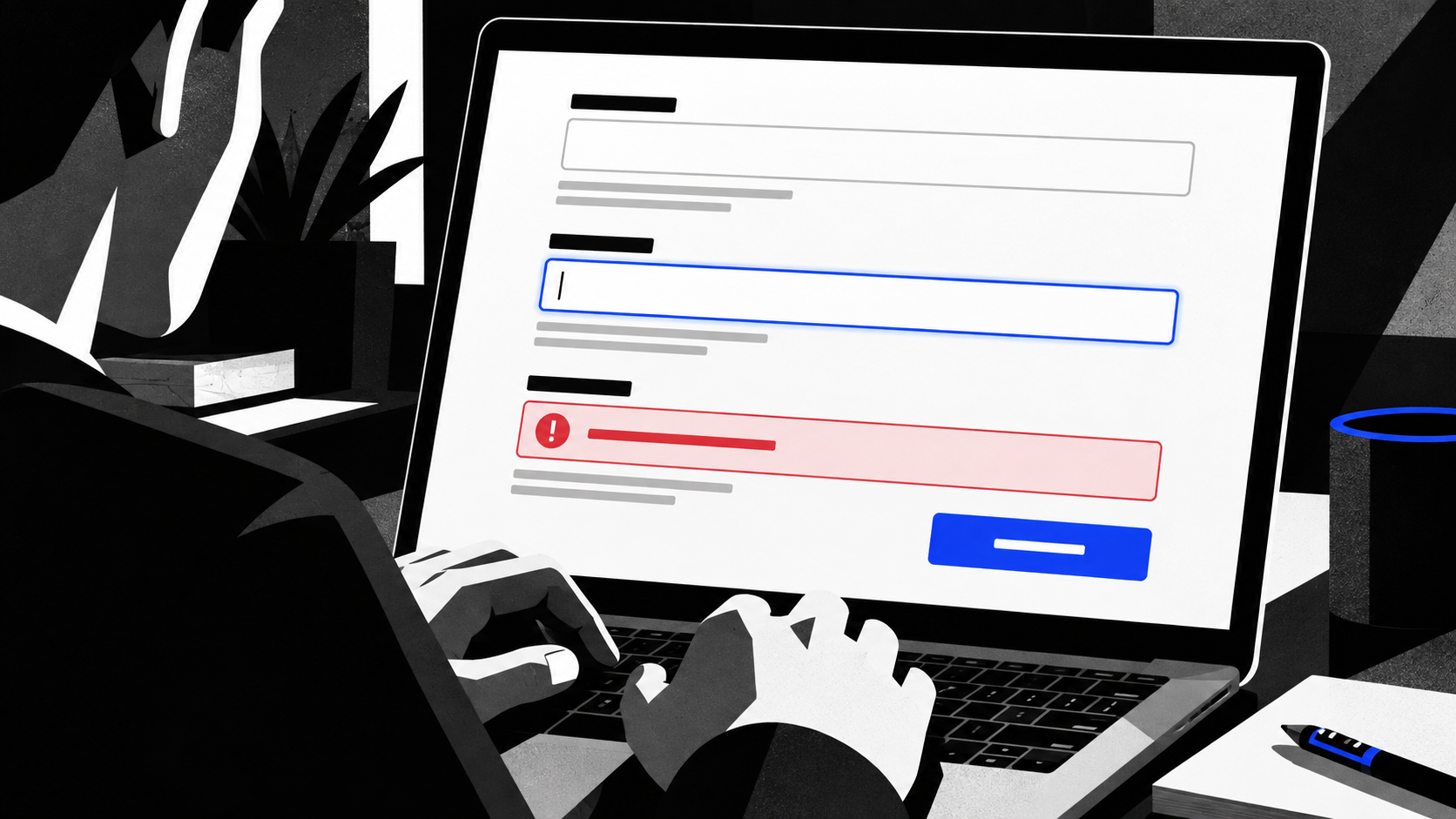
Forms should receive early attention because they concentrate several kinds of difficulty. Every field needs a visible label that identifies what is requested. Placeholder text can support an example but should not be the only label. Required fields should be identified in a way that does not depend on colour alone. If a format is expected, say so before submission. When validation fails, identify the field and explain the problem in plain language. Preserve entered information when possible so the person does not have to reconstruct a long form after one mistake.
Error summaries are useful when they link a person to the problem fields and describe what needs changing. Inline error messages should be programmatically connected to the affected control where appropriate. Success messages need the same care. A visual green banner alone may not tell a screen reader user that an appointment request was received. A status update needs to be exposed in a way that can be discovered without forcing the person to search the page again.
Tables, charts, and documents require the same commitment to meaning. Use a table only for data with real row and column relationships, then identify headers so those relationships are available. Do not publish a chart with colour as its only key and no text summary of the conclusion it supports. If a PDF carries essential information, its accessibility is part of the service, not an exception to the website’s standards. The fact that content has been exported does not remove the need for a usable structure.
Teams sometimes reach for ARIA first because the code looks more advanced. The simpler path is usually more reliable: choose the right HTML element, write clear content, and add ARIA only when the pattern has a defined need. That is not a rejection of complexity. It is a refusal to create complexity where the platform already provides a sound base.
🧾 Make content understandable, not merely detectable
A technically navigable page can still leave people unsure what to do. Accessibility includes the clarity of the words, instructions, labels, and feedback a service provides. W3C’s writing guidance recommends descriptive headings and links, clear language, and content that is organised so readers can scan and understand it. This is editorial work, but it belongs in the accessibility programme because unclear copy can block a transaction as effectively as an unreachable button.
Start with headings. A heading should tell readers what the following section contains. “More information” is a weak heading when “Eligibility for home delivery” tells the reader what they will learn. Clear headings help everyone scan, and they give users of screen readers a meaningful outline for moving through a page. Do not use heading levels simply to make text look larger or smaller. Apply visual styling through CSS while keeping the structural level true to the document.
Links need purpose. “Click here” is unhelpful when heard in isolation. “Download the parking permit application” explains the destination or action. Repeated links can share a label when they truly lead to the same place, but a card grid full of identical “Learn more” links can become a list with no distinguishable destinations. Good link text is a small writing discipline with a large navigational payoff.
Instructions must survive more than one mode of perception. Do not tell someone to “select the green button on the right” when the information can instead say “Select Continue.” Colour, shape, position, and sound can support an instruction, but they should not be the only source of meaning. The same rule applies to error messages. “The red fields are wrong” tells a person nothing if colour is unavailable or if many fields are present. Name the field and the correction.
Plain language does not mean stripping necessary detail. It means arranging detail so people can act on it. Put the decision or required action first. Break long procedures into steps when order matters. Define terms that the public may not know. Avoid a dense paragraph where a brief list is clearer. Keep instructions near the controls they describe. These choices support people with cognitive disabilities, people reading on a small screen, and anyone trying to finish an urgent task without rereading a page three times.
Alternative text needs editorial judgment. Decorative images can have empty alternative text so they do not add noise. Informative images need an alternative that conveys their function or relevant content. An image used as a link should communicate the link’s purpose. Complex diagrams and charts often need a nearby text explanation, not a token phrase such as “chart image.” No automated layer can reliably decide these distinctions because they depend on why the image exists in that particular story or service.
Video and audio need their own accessible equivalents. Captions help people who are deaf or hard of hearing and people watching without sound. A transcript can make spoken content searchable and reviewable. When visual information is essential to understanding a video, a text alternative or audio description may be needed. Again, the point is not to add a badge claiming inclusion. It is to provide the information in a form the audience can use.
Content publishing workflows are where small teams can make rapid gains. Add a pre-publication checklist to the CMS: page title, heading structure, descriptive links, text alternatives, captions or transcript where needed, meaningful form copy, and a check that colour is not the sole instruction. Give editors examples, not just rules. “Describe what the image contributes to this article” produces better alternatives than “fill in alt text.”
🛠️ Give a small team a repair sequence it can sustain
A small team cannot rebuild every template in a week, and pretending otherwise leads to abandoned programmes. The answer is prioritisation, not a weaker definition of accessibility. Fix the barriers that prevent people from completing essential tasks, then make the repaired patterns reusable.
Begin with a short baseline audit of the core routes. Use automated checks to find obvious, repeated issues. Add keyboard walkthroughs and a manual review of headings, links, forms, dialogs, and dynamic updates. Categorise findings by impact and reach. A missing label in a global search component may affect many pages. A broken submit button in a booking flow blocks a central service even if it appears on one route. A cosmetic inconsistency can wait behind a defect that prevents completion.
Then establish a small set of non-negotiable standards for new work:
- Every interactive control has a clear purpose and keyboard access.
- Every form input has a visible label, and focus remains visible.
- Text and controls remain usable at zoom, while errors identify what went wrong.
- Content uses real headings, descriptive links, and appropriate image alternatives.
These are not a complete substitute for WCAG 2.2, but they give a lean team a common language for avoiding familiar failures.
Assign ownership by system, not by guilt. Designers should specify focus, error, disabled, and hover states rather than leaving them implied. Content authors should own link purpose, headings, instructions, and image descriptions. Developers should choose semantic elements and implement keyboard and state behaviour. Quality assurance should run route tests before release. A product lead should decide which barriers are addressed first and ensure accessibility defects are not quietly downgraded to polish.
Make the backlog visible. Each issue should say who is affected, what task is blocked or made difficult, where it occurs, how to reproduce it, and what a successful repair looks like. Avoid vague tickets such as “improve accessibility of the checkout.” A useful ticket might say that the quantity picker is a custom control with no accessible name, cannot be operated by keyboard, and needs to expose its current value and available actions. Specificity reduces rework.
Avoid treating conformance as a warranty. WCAG 2.2 is a widely used technical standard, and its success criteria are valuable for design and testing. But a conforming claim does not remove the need to test actual journeys, especially when a service uses third party widgets, changing content, or complex account flows. Accessibility maintenance is like security maintenance in one important respect: the work continues when the product changes.
Build review into delivery. A pull request for a component can include a keyboard test note. A design review can ask where focus goes after an action. A content review can inspect link text outside context. A release checklist can require a successful keyboard pass for the route affected. None of these practices require a large separate accessibility department. They require the organisation to make access part of ordinary quality control.
Do not forget procurement. A small team may rely on payment tools, calendar systems, chat widgets, map embeds, document services, and marketing platforms. Ask vendors how their interface works with keyboard navigation and assistive technology, what accessibility documentation they provide, and how defects are reported and resolved. Test the parts of the integration that visitors actually use. A third party script can block an otherwise accessible route, and an overlay will not give the team control over its internal defects.
Progress should be reported honestly. Say which routes were assessed, what barriers were found, what has been fixed, what remains, and how users can report a problem. The European Union’s accessibility framework includes accessibility statements and feedback mechanisms for covered public sector websites and mobile applications. Even when a private organisation is not within that exact scope, the principle is sound: publish a usable way for people to raise access problems and ensure someone can act on the report.
🌱 Treat accessibility as product maintenance, not emergency decoration
The strongest case against the “repair it with an overlay” idea is not that every configuration panel is bad. It is that the promise distracts from the work that improves a service for the next visitor, the next editor, and the next release. A durable site has understandable content, semantic structure, reliable controls, visible focus, sensible errors, and tested routes. Those qualities live in the product.

Small teams can begin without waiting for a perfect programme. Choose one essential route. Test it by keyboard. Inspect the form labels and error messages. Check headings and link text. Review what a screen reader user would encounter at the points where information changes. Fix the failure closest to the task. Repeat. The result is not an abstract accessibility initiative. It is a service that stops asking some visitors to work around avoidable barriers.
W3C’s accessibility materials, WCAG 2.2, and the ARIA Authoring Practices Guide provide the technical vocabulary. The U.S. Department of Justice and the European Commission show that online accessibility has public and legal significance as well as product value. But the daily decision is local: whether a team will repair the page it owns or apply a visible layer and hope the underlying problem disappears.
The repair work is usually less glamorous than a single install. It asks teams to read their own forms, question custom controls, improve content standards, and revisit assumptions made in a hurry. It also creates assets that compound over time: a button that behaves correctly everywhere, a form pattern that communicates errors clearly, a content checklist editors can use, and a release practice that catches a regression before a visitor does.
A floating accessibility control can remain an optional preference feature if it is useful and does no harm. It should never be the end of the conversation. The standard is simpler and more demanding: can people use the website to do what they came to do? When the answer is yes without requiring a workaround, the team has done the work an overlay cannot do for them.
Sources: W3C Web Accessibility Initiative, “Introduction to Web Accessibility”; W3C, Web Content Accessibility Guidelines 2.2; W3C, ARIA Authoring Practices Guide; W3C, “Writing for Web Accessibility”; European Commission, “Web accessibility”; U.S. Department of Justice, “Guidance on Web Accessibility and the ADA.”