Apple’s August security releases give iPhone and Mac owners a simple reason to stop treating the update badge as background noise. Apple lists iOS and iPadOS 26.6.1, macOS Tahoe 26.6.2, Safari 26.6.1, and iOS 18.7.10 among its current releases. They arrived in the same month as the seventh developer beta of iOS 27, iPadOS 27, and macOS 27. That combination matters: a public beta is not a substitute for a supported security release.
For a small business, the useful question is not whether every device should install every beta. It is whether the devices that hold customer messages, passwords, invoices, design files, and administrator access are on the latest stable update Apple offers for that hardware. Apple itself says keeping software up to date is one of the most important steps for maintaining the security of an Apple product.
🧭 The August release set is split between stable and beta software
Apple’s release page dated August 24 lists beta 7 builds for iOS 27, iPadOS 27, macOS 27, tvOS 27, visionOS 27, and watchOS 27. Those are developer testing releases. Apple’s security-release page separately identifies iOS and iPadOS 26.6.1 and macOS 26.6.2 as the latest stable versions, released August 17. Safari 26.6.1 followed on August 18 for macOS Sonoma and macOS Sequoia.
That distinction prevents a common operational error. A beta answers the question, “What should developers test?” A stable update answers, “What should an ordinary production device run today?” Teams should not move a shared work phone, the laptop that manages a website, or a device used for banking into a beta program merely because it appears newer.
- Use stable releases on production iPhones, iPads, and Macs.
- Reserve beta builds for a spare device or a documented test machine.
- Record the device, operating-system version, owner, and business role before testing.
- Do not make a beta the only place a client file or authenticator can be accessed.
Check the version before assuming an update applied.
An update prompt disappearing is not proof that a device reached the intended version. On iPhone and iPad, open Settings, then General, then Software Update. On a Mac, use System Settings and General, then Software Update. Apple’s support documentation is the authority for the exact current stable release: iOS and iPadOS 26.6.1, and macOS 26.6.2 at the time of writing.
The version check is short, but it creates a useful audit trail. A studio with two people does not need enterprise software to maintain a list of its critical devices. A spreadsheet with model, serial asset label, operating-system version, last backup date, and the person responsible is enough to expose the overlooked phone that still contains the shared social-media login.
The August release list also shows why model coverage matters. Apple lists iOS 26.6.1 and iPadOS 26.6.1 for iPhone 11 and later and specified recent iPad families. It lists iOS 18.7.10 and iPadOS 18.7.10 for iPhone XS, XS Max, XR, and seventh-generation iPad. The right question is therefore not “Is our iPhone updated?” but “Which supported release does this exact iPhone receive?”
Back up first, especially when the device is a work device.
A stable security update should not require drama. Yet a device that has never completed a usable backup turns a routine restart into a business risk. Before updating a phone that carries customer correspondence, work photos, or an authenticator, confirm that its backup has completed and that the account used to restore it is accessible.
For Macs, check that the intended backup destination has recent data, enough capacity, and a restoration path the owner can use. For iPhone and iPad, Apple’s support materials explain software updating; the practical addition is to check available storage, battery or power, Wi-Fi reliability, and the recovery credentials before pressing Install.
A backup is not the same as a copy of a few recent files. A copied project folder may preserve the design work but omit password-manager access, device settings, messages, or photos needed to reconstruct a client conversation. Conversely, a backup that cannot be restored because the Apple Account credentials are unavailable is not an operational safeguard.
Install updates in a deliberate maintenance window.
The best time to update a business-critical device is rarely five minutes before a client call. Pick a window when the device can be charged, connected, restarted, and observed. For a solo operator, that may be the end of the day. For a small team, stagger devices rather than updating every administrator phone at once.
A practical sequence is simple:
- Confirm the stable version offered for the device.
- Verify a recent backup and recovery credentials.
- Charge the device and use a reliable connection.
- Install the update during a low-risk window.
- Restart if prompted, then test the essentials.
- Note the version and date in the device list.
The final test is the part people skip. Open the password manager. Send or receive one ordinary message. Check that the browser can reach the business website and that the authentication app still displays codes. On a Mac used for development, open the local tools and a key project. None of these checks prove every feature is perfect, but they turn an update from an unattended event into a controlled change.
Browser updates belong in the same checklist.
A website studio may focus on operating systems while forgetting that the browser is where many business tasks happen: domain administration, hosting dashboards, email, payment portals, CMS work, and client research. Apple lists Safari 26.6.1 for macOS Sonoma and macOS Sequoia with a release date of August 18. That gives teams on those macOS versions a specific browser update to check.
Safari’s presence is a reminder to test the web workflows that matter after an update. Open the website CMS in the supported browser, sign in through the normal authentication route, upload a harmless test file only if the workflow permits it, and inspect a preview. If an extension is critical to operations, record that dependency before the maintenance window rather than discovering it in the middle of a deadline.
Beta testing has a place, but it needs boundaries.
The iOS 27 and macOS 27 beta 7 releases are useful news for developers because they indicate Apple’s testing cycle is advancing. A web studio may want to inspect a responsive site, account login, checkout journey, web font, camera upload, or payment page on the new platform. That is quality assurance, not a reason to migrate every daily-use machine.
Set one test objective per device. A mobile web test might examine whether a navigation menu opens, a form can be completed, a file can be uploaded, and confirmation email arrives. A Mac test might check the browser, local development environment, and a production-like preview. Record the build number, date, device model, browser, test path, observed result, and whether the result can be reproduced.
This is where small teams gain an advantage. They can test the handful of customer paths that actually create revenue instead of producing a large generic compatibility report. The result should be specific enough to act on: “iPhone model X, iOS 27 beta 7, Safari, contact form works” is meaningful. “The beta seems fine” is not.
What Apple’s support window means for older hardware.
Apple’s August list includes iOS 18.7.10 for iPhone XS, XS Max, XR, and seventh-generation iPad while newer supported devices receive iOS 26.6.1. This is a useful prompt to separate hardware inventory from update policy. Older hardware may remain appropriate for limited tasks, but it should not quietly become the only holder of a shared credential or the only device capable of approving a payment.
There is no universal replacement date in Apple’s release page. A responsible policy instead maps each device to its current supported release, its business role, and a fallback plan. If a device cannot receive a current release needed for the business’s risk posture, move sensitive administration to a supported device before an incident forces the decision.
“Keeping your software up to date is one of the most important things you can do to maintain your Apple product’s security.” — Apple Support, Apple security releases
A short checklist for the next 30 minutes.
Start with the accounts that would be hardest to recover: the Apple Account, email, password manager, domain registrar, payment service, and website CMS. Identify which phone or Mac holds access to each one. Then confirm that device’s current operating-system version and backup status.
For businesses with a customer-facing website, include one web check after the update. Visit the homepage on a phone, open the contact or order path, and inspect the page in the browser your customers are likely to use. This is not a security audit of the entire site. It is a quick way to catch a broken critical journey while there is still time to fix it.
Limits of this guidance.
Apple’s public release pages tell us which releases exist and which devices they cover. They do not guarantee that every third-party application, browser extension, peripheral, or custom development tool will behave identically after an update. They also do not make a beta suitable for production. Test business-critical tools, preserve a recovery path, and seek vendor support when a supported application has a documented incompatibility.
The advice also cannot replace a response plan for a lost device, compromised account, or suspected fraud. Updates reduce exposure to addressed software issues, but strong unique passwords, multi-factor authentication, access review, and recovery documentation remain separate controls.
The decision is simpler than the badge suggests.
The useful August action is clear. Put iOS and iPadOS 26.6.1, macOS Tahoe 26.6.2, and Safari 26.6.1 into the maintenance queue where they apply. Keep iOS 27 and macOS 27 beta 7 in a controlled test lane. Then verify the login, browser, and backup paths that keep the business operating.
A software update does not make a team secure by itself. But leaving an eligible production device behind without knowing it is behind creates a problem that is both avoidable and hard to explain after the fact.
🔎 Read the release notes as an operational document
The August releases are worth reading beyond the version number. Apple says iOS 26.6.1 and iPadOS 26.6.1 include fixes first made available in the iOS 27 and iPadOS 27 betas. Apple says the same of macOS Tahoe 26.6.2 and Safari 26.6.1 in relation to the macOS Golden Gate 27 beta. That is a useful distinction for a business: a fix can reach a supported stable device without asking that device to join the next operating-system cycle.
The security notes are also more concrete than a generic instruction to update. Apple lists an ImageIO issue where processing an image may lead to arbitrary code execution, a kernel issue where a remote attacker may cause unexpected system termination, and WebKit issues involving maliciously crafted web content. These descriptions do not tell a reader how likely an attack is, and they should not be used to make a claim about a particular incident. They do show why a phone that opens client images, a Mac that receives attachments, and a browser used for administration belong in the same update review.
For a web team, WebKit deserves particular attention because browser work is ordinary work. A dashboard session, a preview link, an uploaded asset, and a customer-facing form all pass through a browser. The immediate action is still restrained: install the compatible stable release, then check the specific business flows that matter. Do not turn a CVE list into a reason to make unsupported claims about exposure.
🔐 Build an inventory around access, not around device age
A device inventory often begins with purchase dates and model names. That is useful for budgeting, but it misses the question that matters when a device is lost, delayed, or left behind: which account can only be reached from this device? Start with access. List the Apple Account, primary email, password manager, domain registrar, hosting control panel, payment provider, analytics account, social channels, source-code service, and website CMS. Then record the device and recovery method associated with each.
This approach catches weak arrangements early. A retired iPhone may still receive a one-time code for a shared account. A Mac used only for occasional invoicing may hold the only local key to an encrypted archive. An administrator can be added to a CMS while the original owner remains the sole person able to reset the mailbox. Updating software does not fix those arrangements, but maintenance time is a sensible moment to find them.
Keep the list small enough to maintain. A table with device model, operating system, business role, named custodian, backup date, recovery contact, and update date is more useful than a long asset register no one opens. Avoid putting passwords, recovery codes, or private keys in the table. The record should point to the approved place where those secrets are managed, not reproduce them.
🔄 Separate automatic updates from unattended change
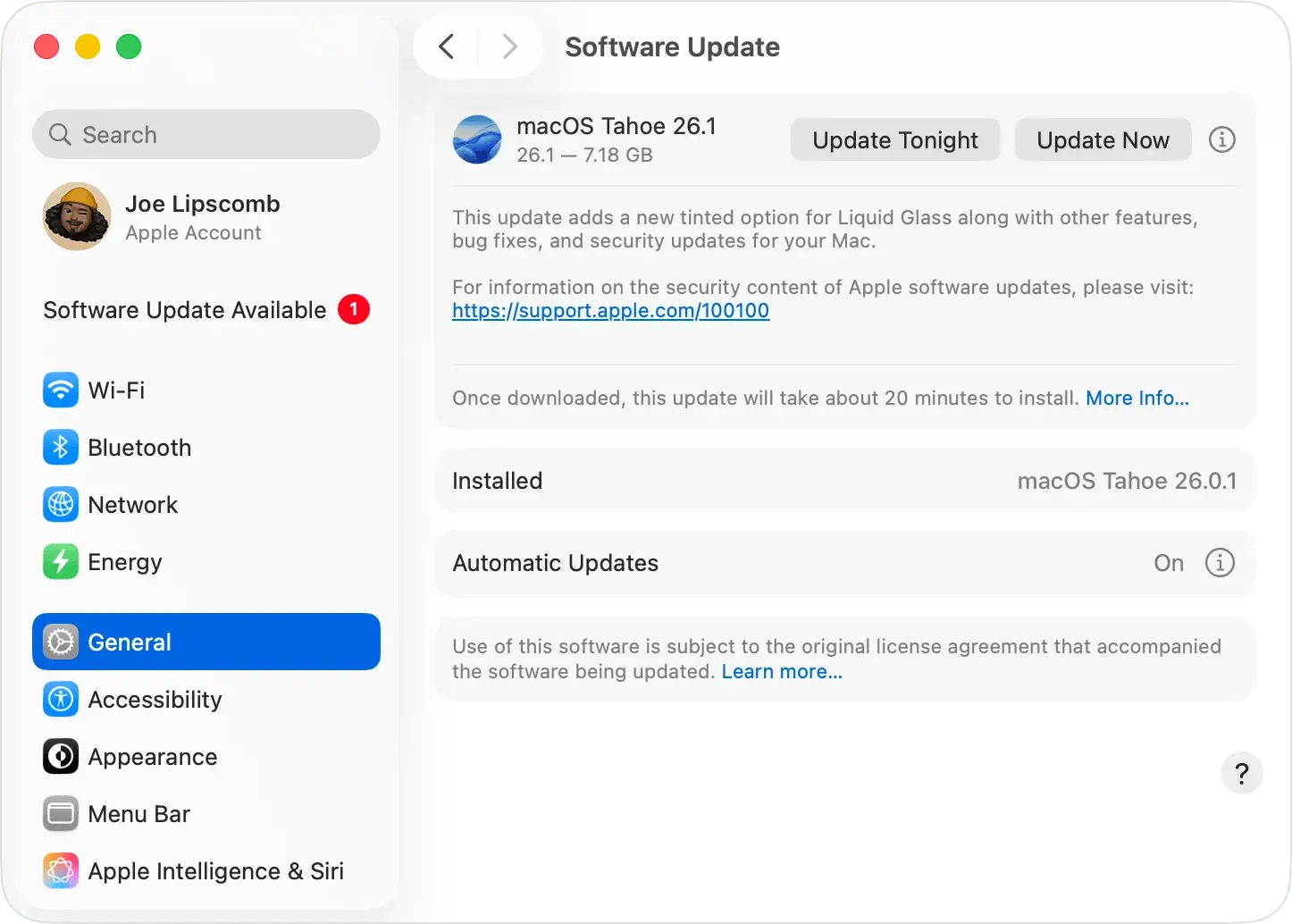
Apple recommends automatic updates and offers separate controls for downloading and installing them on iPhone and iPad. That can reduce the chance that a routine release is forgotten. It does not remove the need to know what changes on devices that operate a business.
A sensible small-team policy can combine both. Enable the automatic download of updates on ordinary, supported devices. Choose a maintenance window for installation on machines that run a site deployment, contain sole-access credentials, or are needed for a live event. Review the installed version afterwards. This preserves the benefit of timely delivery without pretending that all devices have identical consequences if a restart, login prompt, or extension problem appears.
Mac users have similar choices through Software Update. Apple says it shows only software compatible with the Mac model. That means an absent offer is not proof that the device is current in some abstract sense; it means the device should be assessed against the compatible releases Apple offers. Record the operating system actually installed and the update offered, rather than applying a version number copied from another machine.
🧪 Test the customer path, not every possible feature
A post-update check does not need to become a two-hour test plan. It should cover the path whose failure would create immediate operational trouble. For many websites, that means a visitor can load the homepage, open the menu on a phone, submit a contact form, receive an expected confirmation, and reach a payment or enquiry route without an obvious error. If staff use a CMS, log in through the normal multi-factor route and open a draft or preview.
A different business may need a different path. An online retailer may test the checkout without placing a real order. A photographer may confirm an image upload workflow. A studio with a client portal may check sign-in, file access, and notifications. Write down the expected outcome before testing. “Looks normal” is difficult to compare later. “Contact form sent, confirmation arrived at the monitored mailbox, and the CMS preview loaded in Safari” is a usable record.
The test should be reversible and respectful of production data. Do not create fake customer records, send confusing messages, or change billing settings merely to prove that a browser works. Use existing staging or preview routes where available. If a critical path fails, keep the observation, device, version, browser, time, and error message. That gives a vendor or developer something concrete to investigate.
🧰 Put beta work behind a clear test charter
Apple describes the Beta Software Program as a way to test pre-release versions and provide feedback. That is the right frame for a studio. A beta device should answer a question that a future release may affect, such as whether a responsive navigation component, a login integration, a payment redirect, a web font, or an upload control behaves as expected.
Write one charter per test. Name the device model, operating-system build, browser version, website or application, precise journey, expected result, observed result, and whether a failure can be repeated. Resetting a beta device, losing access to a test account, or finding a layout defect then becomes a bounded engineering task rather than an interruption to daily work.
Do not assign a beta device the exclusive role of receiving urgent customer messages, approving payments, or holding the only authenticator for an administrator. That boundary matters more than the number of beta testers. A single spare iPhone can reveal a mobile-web problem early. A production phone that carries every client conversation is a poor place to discover a release candidate breaks a required app.
📱 Plan for the supported version each device can receive
The August security page lists two iPhone and iPad lines: iOS and iPadOS 26.6.1 for iPhone 11 and later plus specified iPads, and iOS 18.7.10 and iPadOS 18.7.10 for iPhone XS, XS Max, XR, and seventh-generation iPad. This is why teams should identify the exact model before deciding an update was missed. A newer version number may not be the compatible stable release for an older device.
Compatibility is not a verdict that older equipment must immediately disappear. It is a planning input. An older phone used for a narrow, low-risk function can be managed differently from a device that approves financial transactions or stores the recovery channel for the company email. The business decision should consider the supported version, the account access attached to the device, the availability of a replacement, and the ability to restore from backup.
When replacement is necessary, move account access deliberately. Enrol the new device, confirm the password manager and authenticator work, check recovery contacts, test the business workflow, and only then remove old access under the organisation's policy. A rushed reset before the new route works can convert a manageable upgrade into an account-recovery incident.
💾 Keep recovery evidence separate from the update itself

Apple's iPhone guide says iCloud can back up a phone daily when it is locked, connected to power, and on Wi-Fi, and it also describes manual and computer backups. Those facts are a reason to check the timestamp, not to assume a backup exists. For a work device, identify the Apple Account that owns the backup, the available storage, the last successful backup, and who can sign in if the current phone cannot.
On a Mac, Apple advises backing up before installing new software. Confirm the intended destination contains recent data and is not merely connected. A backup strategy also needs a restoration decision: which person can access it, which credentials are required, and where a replacement device would be prepared. Test restoration procedures only in a planned, safe environment. A live production device is not the place to learn what an incomplete backup omitted.
Documenting recovery does not mean placing secrets in a project-management tool or a shared chat. Use the team's approved password manager, access policy, and recovery storage. The maintenance record can simply state that the recovery path was checked on a date by an authorised person.
🗓️ A 30-minute maintenance routine that scales
The following routine fits a solo operator and still works when a team grows. Start with the devices that can administer customer-facing systems. Check the exact model and installed version. Review whether Apple offers a compatible stable update. Confirm the latest backup and recovery route. Install during an appropriate window. Then test the few business paths that must work.
- Check the iPhone or iPad in Settings, General, Software Update.
- On a Mac, open System Settings, General, Software Update.
- Confirm the backup timestamp and the authorised recovery route.
- Install the compatible stable release while on power and a dependable connection.
- Test the password manager, authenticator, primary mail, browser, and one customer-facing web path.
- Record the version, date, device, and any exception requiring follow-up.
This is deliberately modest. It does not replace endpoint management, incident response, security monitoring, vendor due diligence, or an accessibility test. It makes routine work visible. The important outcome is knowing which production devices are current, which are waiting for a safe window, which are test devices, and which account dependencies need attention.
⚠️ The limits of a release-by-release checklist
Apple's release notes describe patches and compatibility. They cannot guarantee the behaviour of a third-party browser extension, payment integration, local development dependency, peripheral, or a customised business application. Nor does a current operating system compensate for shared passwords, weak recovery processes, excessive account permissions, or a lost unlocked device.
Treat update status as one control among several. Use distinct passwords kept in a suitable password manager. Enable multi-factor authentication where an account supports it. Review who has administrator access when roles change. Keep a documented path to regain control of domain, email, and payment accounts. For a website, maintain backups and a way to contact the host or developer when a service problem is suspected.
There is another limit: security notes rarely tell an organisation whether it has been attacked. A listed issue should prompt timely patching, not an unsupported diagnosis. If a business sees suspicious account activity, unfamiliar forwarding rules, unexpected password resets, or fraudulent payment requests, it needs its own incident procedure and the relevant provider's support route.
✅ Treat the next update badge as a maintenance signal
The August releases make the immediate choice straightforward. On eligible production devices, review the compatible stable update: iOS and iPadOS 26.6.1, macOS Tahoe 26.6.2, or Safari 26.6.1 where Apple lists them. Keep iOS 27 and macOS 27 beta testing on devices with a defined purpose and a fallback route. Do the short version, backup, access, and customer-path check while the update is still a planned task.
That discipline is more useful than treating every badge as either an emergency or an annoyance. A software update is a small change to a device that may hold a large amount of business access. Give it a small, repeatable process in return.
Sources: Apple Developer Releases; Apple security releases; Apple Support, “Update your iPhone or iPad”; Apple Support, “Update macOS on Mac”; Apple Support, “About the security content of iOS 26.6.1 and iPadOS 26.6.1”; Apple Support, “About the security content of macOS Tahoe 26.6.2”; Apple Support, “About the security content of Safari 26.6.1”; Apple Beta Software Program; Apple iPhone User Guide, “Back up iPhone.” Accessed August 28, 2026.
Sources: Apple Developer Releases, Apple security releases, Apple Support software-update guides, and Apple’s iPhone User Guide, accessed August 28, 2026.