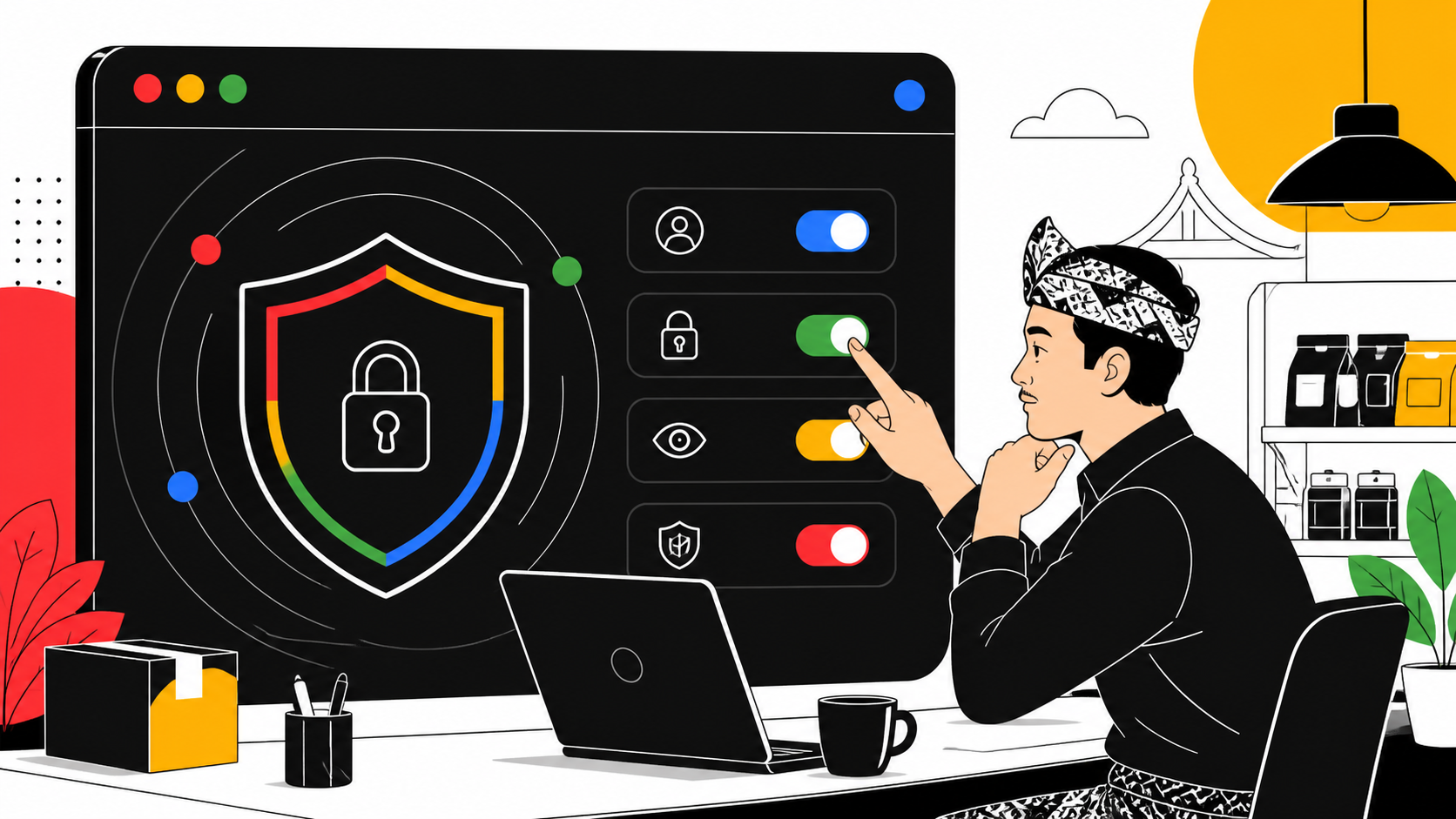
Chrome is usually the window through which a small business receives orders, checks invoices, edits a website, signs into analytics, and talks to customers. That makes a browser security routine more practical than a once-a-year “digital cleanup.” Google’s current Chrome guidance puts the relevant controls in one place: Safety Check can surface weak or compromised passwords, pending updates, risky extensions, notification permissions, and site permissions. The work is not glamorous. It is still worth scheduling.
A browser cannot replace good account recovery, a patched operating system, or careful payment approval. It can, however, reduce the number of old permissions, forgotten extensions, and reused passwords that sit quietly between a staff member and a business account. For Indonesian teams that share a device, a Wi-Fi connection, or access to a web dashboard, the safest routine is a short review with clear boundaries: update first, inspect what Chrome flags, then decide what to remove.
🧭 Start with a small, repeatable scope
The first mistake in a security review is trying to fix every digital risk at once. Chrome’s own Safety Check is designed as a starting point rather than a complete audit. On a computer, open Chrome, go to Settings, choose Privacy and security, then open Safety Check. Google says this review checks compromised, reused, or weak passwords; Safe Browsing status; available Chrome updates; potentially unwanted notifications; unused site permissions; and potentially harmful extensions.
That list is useful because it connects browser settings to ordinary business work. A reused password can expose a storefront account after an unrelated service is breached. An extension installed for a one-off task can retain access long after the task ends. A notification prompt accepted on a sketchy site can keep interrupting a desktop with misleading alerts. Each item is small in isolation. Together they create unnecessary ways into an account.
Use one owner or designated administrator for the review. Do not ask every staff member to change shared settings independently. If a team uses separate Chrome profiles, run the same review in each profile that handles business logins. A personal profile and a business profile have different saved passwords, extensions, cookies, and permissions. Treating them as one environment makes later troubleshooting harder.
A practical weekly scope looks like this:
- Confirm whether Chrome has a pending update and relaunch at a safe moment.
- Read every Safety Check warning rather than dismissing it in bulk.
- Remove one extension, permission, or notification only after checking whether a work process depends on it.
- Record the account or website affected when a password must be changed.
- Leave deeper account recovery and device-management work for a separate session.
The routine should take minutes when nothing is wrong. If Chrome reports several compromised passwords or suspicious extensions, stop treating the task as a quick tidy-up and work through each item deliberately.

🔄 Update before changing other settings
Chrome updates are part of its security model. Google says Chrome can automatically update when a new version is available, but an update may wait until the browser is closed and reopened. On desktop, More, Help, then About Google Chrome lets the browser check its version and show a Relaunch option when an update is ready.
That relaunch matters because an open browser can keep an update from taking effect. Before clicking it, save unfinished form entries, drafts, and work in web applications. Chrome says open tabs and windows normally reopen after restart, but Incognito windows do not. A team that uses Incognito for a temporary customer login or a private administrative task should not assume that window will come back.
For Linux users, Google directs Chrome users to their package manager for updates. That distinction matters in a studio or agency environment: updating the browser package and updating the operating system are related but separate maintenance tasks. For a Windows, Mac, or Chromebook device, the browser’s update path differs too. The shared rule is simple: verify the installed version and complete the relaunch before calling the browser current.
Do not treat “I usually update automatically” as evidence that the running browser has current fixes. Safety Check can point to an available update, while the About screen gives the immediate state on that device. Pick a low-traffic time for a business machine, especially if many tabs hold CMS work, customer chats, or checkout administration.
🛡️ Choose Safe Browsing with the privacy trade-off visible
Safe Browsing is Chrome’s warning system for malware, phishing, malicious or intrusive ads, social-engineering attacks, dangerous downloads, and risky extensions. Google describes three choices: Enhanced protection, Standard protection, and no protection. Standard is on by default. Turning it off removes browser protection against potentially dangerous websites, downloads, and extensions. That is not a sensible default for a device used to manage business accounts.
Enhanced protection offers warnings about known and potential new dangers, including ones Google did not previously know about. Google also states that this mode sends the URL of the site, a small sample of page content, extension activity, and system information to Google Safe Browsing to assess possible harm. It may perform more in-depth scans of suspicious downloads. This is a security benefit, but it is also a data-sharing choice. Teams should make that choice knowingly, not because a warning screen feels urgent.
Standard protection is narrower. Google says it protects against identified dangerous sites, downloads, and extensions. It uses privacy servers to obfuscate part of a URL before it reaches Google’s Safe Browsing service; full URLs and page-content fragments are sent when a site does something suspicious. For many small teams, Standard is a reasonable baseline when their policy calls for limiting data sent to external services. A higher-risk role, such as the account that controls advertising spend, the domain registrar, or a payment dashboard, may justify Enhanced protection after the owner understands the trade-off.
The wrong answer is not “Standard versus Enhanced.” The wrong answer is leaving Safe Browsing disabled because a warning interrupted a download. If a website, file, or extension is essential for work and triggers a warning, verify its official source, check whether an administrator approved it, and find out why the warning appeared. Do not train a team to click through warning pages as a reflex.
🔑 Treat saved-password alerts as account work
Chrome can warn when a username and password stored in Google Password Manager has appeared in a data breach. Google’s guidance is direct: change a compromised password as soon as possible. That should not mean choosing a slight variation of the old password. Use a new, unique password for the affected service, then make sure the password manager has the correct replacement.
The key word is unique. A password reused across a domain registrar, business email, e-commerce platform, or social account turns one leak into several possible account takeovers. Safety Check also identifies reused and weak passwords, which makes it useful even when there is no reported breach. Start with accounts that can change payments, domains, public content, user access, or recovery details. Next address email, because email is often the reset channel for everything else.
Chrome’s password guidance distinguishes between credentials saved to a Google Account and credentials saved locally on a device. When signed into Chrome, a user can save passwords to the Google Account and use them across devices and some apps. When not signed in, Chrome can store them locally. This distinction affects an offboarding conversation. If a departing staff member’s personal Google Account holds business credentials, changing the business passwords is more reliable than assuming the old saved copy has disappeared.
Password cleanup has limits. It does not revoke an already active session in another browser, remove a malicious forwarding rule from email, or repair a compromised recovery address. For each serious account, review its own security page after changing the password: active sessions, two-step verification, recovery methods, authorized apps, and login history where offered. The browser alert is the prompt to investigate, not the whole incident response.
🧩 Keep extensions on a short leash
Extensions can add useful functions such as accessibility tools, password management, design inspection, and workflow shortcuts. They can also read or change data on websites, depending on the permissions they request. Google says Safety Check can warn about extensions that might pose security risks. That is a reason to inspect the extension, not a reason to install a replacement at random.
Begin with a simple inventory. Which extensions are required for billing, the CMS, development, or accessibility? Which were installed for a one-day task, a webinar, a coupon, or an experiment? Delete the unused ones. For extensions still needed, open their details and understand the access they request. A tool that operates only on one service should not automatically be granted broad access to every site.
Install from an official extension store page or the developer’s official distribution channel. A search advertisement, copied download page, or pop-up claiming that a video codec is missing is not a trustworthy software source. Before approving an extension for a business profile, check its publisher, its purpose, its requested permissions, its update history, and the internal person responsible for it.
A small web team benefits from an allow-list mentality. That does not require enterprise management software to be useful. It can be a short shared document: extension name, official URL, purpose, profile where it is allowed, and the person who approved it. When someone asks why an extension disappeared, the team has a record rather than a guessing game.
📍 Review permissions one site at a time
A site can request access to a camera, microphone, location, notifications, downloads, local-network connections, and other capabilities. Google’s Chrome guidance says site permissions can be changed without changing the default setting for all websites. On Android, its help pages describe choices including allowing access once, allowing while visiting, or never allowing. Desktop menus differ by platform, but the security question is consistent: does this site need this capability for the work being done now?
Camera and microphone permissions deserve special attention for teams that hold client calls in the browser. Grant them only to known meeting services and revoke old approvals after a project ends. Location access may be necessary for mapping or delivery workflows, but a CMS, invoicing site, or generic article page rarely needs it. Notification permission is often abused by sites that imitate system alerts or push misleading prompts. Google says Chrome can remove notification permissions from sites that Safe Browsing finds deceptive, yet teams should still review grants themselves.
Unused site permissions are part of Safety Check because old access accumulates. A useful rule is to remove access when a task ends, then grant it again if a real need returns. This is less risky than leaving every old permission permanently on. It also makes troubleshooting clearer: when a legitimate call site loses microphone access, the person can deliberately approve it again and know why.
Do not block every permission globally without testing. Google warns that sites may not work as expected when they cannot save needed data or use required features. The goal is proportionate access, not a browser that refuses every normal web function.

🍪 Separate cookies, site data, and ad controls
Browser privacy settings are easy to turn into slogans. “Delete all cookies” sounds protective, but Google notes that cookies may keep a user signed in, retain preferences, and store locally relevant content. Deleting them can sign people out and remove preferences. For a shared workstation, that may be exactly what the team wants at the end of a shift. For a dedicated business device, a scheduled cleanup can interrupt a checkout platform, CMS session, or help-desk workflow.
Chrome distinguishes first-party cookies from third-party cookies. First-party cookies come from the site shown in the address bar. Third-party cookies can arrive through embedded content such as images, ads, and text from other sites. Chrome’s settings allow users to delete existing cookies, control third-party cookies, and set site preferences. Make a decision by workflow, not habit: preserve the data that a trusted essential service needs, and review exceptions for sites that break when a privacy control is tightened.
Google also calls some locally stored information “on-device site data.” Its documented options include allowing sites to save data, deleting saved data when all Chrome windows close, or blocking storage. The middle choice can work for a shared device that should not keep a long trail between users, though it needs testing with business web apps. The most restrictive setting can stop websites from working as expected.
Ad privacy is a separate category. Chrome’s ad topics use recent browsing activity to infer interests, and Google says users can turn features on or off from Settings, Privacy and security, Ad privacy. Chrome may share up to three topics with sites, and it automatically deletes topics older than four weeks. This is not the same as deleting cookies or preventing every website from collecting data. Explain that distinction to staff so they do not assume a single switch produces anonymity.
🧹 Clear data with a purpose, not panic
The right time to clear browsing data is when there is a reason: a shared computer is changing hands, a web application is stuck, a testing account must be removed, or a staff member is leaving a device. Chrome’s guidance lets users select a time range and choose categories, rather than treating every cleanup as an all-time erase. That granularity is valuable.
Before deletion, list what could be lost. Cookies can sign a user out. Saved form information can disappear. If Chrome is signed into an account, Google says deleting certain browsing data can remove it from other devices and from the Google Account. A person handling the cleanup should know whether the profile is personal, shared, or centrally managed.
For a client-site test, consider a narrower operation first: clear data for that specific site, use a separate testing profile, or remove the relevant permission. A complete browsing-data purge is a blunt tool. It can fix a stale session, but it can also erase the context needed to reproduce a problem. Document the reason and the time range used when the device is part of a business workflow.
A shared machine needs an agreed ending routine: sign out of business services, close browser windows, and confirm that the next person is not inheriting access to an email inbox, dashboard, or payment account. Incognito mode can reduce local persistence for a temporary task, but it does not make an activity invisible to the websites visited, network operators, or an employer’s device management.
👥 Give each person a profile and each profile an owner
Small teams often share a laptop because it is convenient. Shared browser profiles are convenient until a password, a tab, an autofill entry, or a notification belongs to the wrong person. Separate Chrome profiles do not solve every access-control problem, but they create cleaner boundaries around history, saved data, extensions, and sign-in state.
Create a business profile for the person or role that actually needs access. Do not turn one person’s personal profile into the company’s permanent administration account. For shared duties, use named business accounts where the service supports them, assign role-based permissions in the service itself, and keep recovery details under business control. If a contractor needs temporary CMS access, give the least access that completes the task and remove it when the engagement ends.
This is where browser hygiene meets web operations. A website’s CMS account, domain registrar, analytics property, and customer inbox are not interchangeable. Write down which account owns each critical service, who can reset it, and what second factor protects it. Chrome can remember a password. It cannot tell a business whether the right human should still possess that credential.

📋 Use a 15-minute monthly routine
Security is easier to sustain when it has a calendar slot and an owner. For a small business, a monthly browser review plus prompt action on high-severity alerts is more realistic than an elaborate policy that nobody follows. The routine below is deliberately modest.
- Open Safety Check in each business Chrome profile.
- Apply a pending Chrome update, saving work before relaunching.
- Change compromised passwords first, then prioritize reused passwords on critical accounts.
- Review installed extensions. Remove anything unneeded or unfamiliar.
- Review notification, camera, microphone, location, and local-network permissions for sites that no longer need them.
- Confirm the selected Safe Browsing level and make sure no one disabled it to bypass a warning.
- Decide whether cookie and on-device-data settings suit the device’s role: personal, shared, or testing.
- Record anything that requires the service owner, such as account recovery changes or a suspicious login.
The routine will sometimes find nothing. That is a good outcome, not a wasted meeting. Its value is that a strange notification, an unrecognized extension, or a breached password gets noticed while the team still knows who installed it and which account it affects.

⚖️ Know what Chrome cannot decide for you
Chrome can warn, block, and organize settings. It cannot judge a suspicious invoice, verify a caller’s identity, or decide whether a staff member should access an account. It cannot compensate for an operating system that has not been updated, a router with weak credentials, or a business that shares one password in a chat group.
Treat warnings as signals for a human decision. A Safe Browsing alert may be right, but a business still needs a source-verification process before downloading software. A password alert demands a unique replacement, then a review of the affected service. A site-permission prompt needs context: who owns the site, what task is being performed, and whether the access can be removed afterward.
There is also a privacy limit. Enhanced Safe Browsing can provide more protection but entails additional data sent to Google for security analysis, according to Google’s documentation. Cookie controls can improve privacy but may break essential workflows. A good policy states these trade-offs and assigns someone to test them. It does not pretend every switch is free of cost.
✅ Make the browser routine part of business continuity
A small company does not need to wait for a breach to make browser use less fragile. Update Chrome, keep Safe Browsing enabled, respond to password warnings, limit extensions, and remove permissions that outlived their purpose. Put those actions beside other operating tasks such as backup checks and domain-renewal reviews.
The useful result is not a perfect settings screen. It is a browser profile where each saved credential, extension, permission, and sign-in has a known reason. When a problem does occur, that clarity makes the next decision faster: change the right password, revoke the right access, and keep the business moving without guessing.
Sources: Google Chrome Help on Safety Check, updates, Safe Browsing, cookies, permissions, password management, ad privacy, and on-device site data; accessed 1 September 2026.