
Your Passkeys Can Travel, but the Route Still Matters
A password manager can become the place where much of your digital life lives: passwords for old accounts, passkeys for newer sign-ins, and the familiar prompt that appears when you need either one. Changing managers ought to be a choice about which app works for you, not a choice between keeping access and starting over. A new Android transfer route brings that choice closer, but the word “transfer” covers several different operations with different limits.
Google announced in September 2026 that its new transfer experience is available in Google Password Manager, 1Password, Bitwarden Password Manager, and Dashlane. The participating apps matter more than a broad promise of portability: a supported route depends on the manager you are leaving, the one you are joining, the device and software involved, and the credentials that can actually be exported. Here is how to read the announcement before you press a migration button.
🔑 What changed for someone with a crowded vault
The practical problem is easy to recognize. You may have chosen a manager years ago because it worked with your browser, then adopted a phone whose built-in manager is easier to use. Perhaps your household now uses a different paid service, or you want a product with a different sharing arrangement. Passwords have long had familiar export and import routes, often involving a CSV file. Passkeys do not fit neatly into that file. They are credentials built around cryptographic keys rather than a password string you can copy into a spreadsheet cell.
On September 10, Google described an Android experience for moving credentials between participating password managers. Its announcement names four currently available products, rather than claiming that every Android manager is already connected. That distinction is important for a reader who sees a transfer option in one app and assumes any destination will accept it. Google says the process starts in the destination manager and requires review and authorization in the existing one. In other words, you do not need to hunt for a generic export file before discovering where it can go. The receiving app initiates a request; the manager holding your credentials asks you to approve what is leaving.
“This new transfer experience is already available on Google Password Manager, 1Password, Bitwarden Password Manager, and Dashlane, with more partners to follow.”
Google, September 10, 2026 announcement on switching password managers.
That is a statement about availability among named partners, not proof that every possible pair, account, item, and device will work in precisely the same way. An app's help screen and the result shown during its transfer flow are better evidence for your particular move. The announcement also does not mean that installing a new manager silently drains the old one. Authorization is part of the described design. If your source manager is not participating, a visible import command in the destination cannot by itself make that source speak the new exchange route.
The larger change is one of control. Until an interoperable route is available for a specific pair of apps, the friction of leaving a manager can be higher than the effort of evaluating a better one. Lowering that friction does not require everyone to move. It lets people treat their credential manager as a replaceable service while keeping a careful eye on what, exactly, has moved. The confidence to change providers is useful only if it is paired with an inventory afterward.
🚪 Start at the destination, then approve at the source
Imagine that your passkeys currently sit in Manager A and you want Manager B to handle sign-ins. First make sure B is the credential manager you actually intend to use, and follow B's own transfer entry point. The Android model described by Google has the destination request credentials from the existing manager. You then review and authorize the request with that existing manager. The direction is easy to confuse: initiating in B does not mean B can read A's vault without A's participation or your approval.
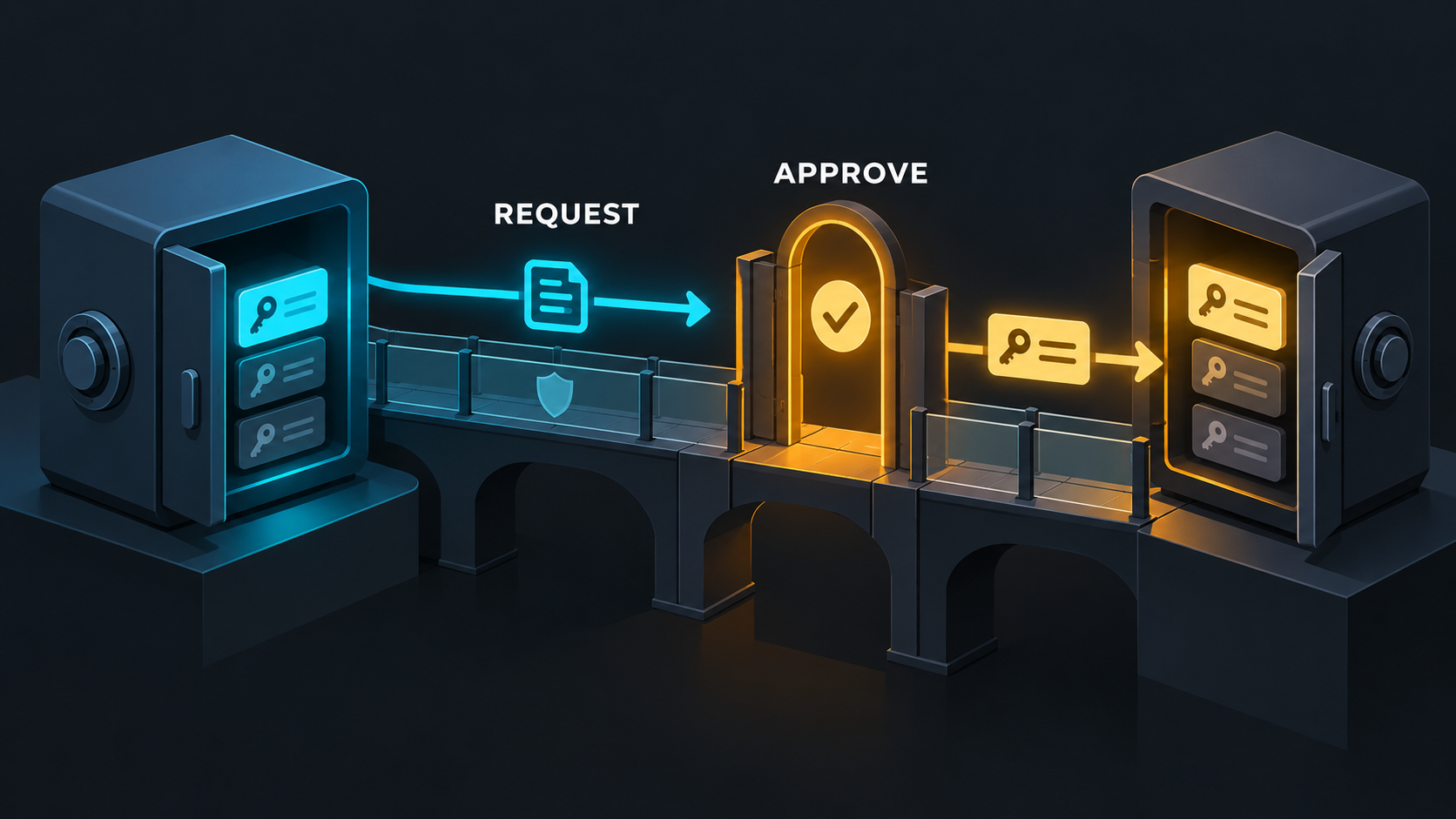
A useful way to picture the exchange is as a handoff between two apps on the same phone, rather than a downloadable suitcase of secrets. Android's developer documentation calls the underlying capability Credential Manager credential transfer. It describes APIs through which a credential provider can request and receive credentials from another provider on the same device. Passwords and passkeys are in scope. The documentation addresses developers implementing that capability; it is not a promise that every phone settings menu offers one universal consumer button. Your actual starting screen is provided by the destination product.
Suppose you have used Google Password Manager and are evaluating one of the named partner apps. Opening the destination app's transfer flow is the sensible first step. Expect to see what source it can connect to and what approval the source asks of you. If the flow offers a review of categories or items, read it rather than tapping through from habit. An authorization screen is a checkpoint about the transfer you initiated, not a general invitation to approve an unexpected prompt that appears later. If the source app asks for device authentication, use the normal local mechanism and pay attention to the app name and request shown.
There are also ordinary tasks that a migration cannot do for you. Decide which app should become your default for future autofill and passkey prompts. Keep the old manager accessible until you have checked representative accounts in the new one. If two managers remain active, new credentials can accumulate in one while you are checking the other; note where a newly created passkey lands. Changing the preferred manager and moving stored items are related decisions, but they are not identical actions. A completed transfer is a reason to verify sign-ins, not a reason to delete the source vault immediately.
The same-device condition matters. A reader might hear “Android transfer” and imagine credentials flowing automatically from an old phone to a new phone, or from a Windows browser to an Android device. The developer API describes exchange between providers on the same device. Sync within a manager, a separate import tool, or a phone replacement workflow may handle other situations. None should be inferred from this particular announcement. If the two apps are not on the same eligible device, consult their documented account and device procedures rather than treating the new handoff as a remote migration service.
🔄 Password files and passkey transfers are different jobs
A CSV export is familiar because a password can be written as text alongside a site and username. That convenience comes with a sharp handling problem: an exported file may contain readable secrets. Google's Chrome help for Android treats importing passwords from a CSV file as its own path. It also describes Android password-manager settings and the need for a screen lock in its guidance. These instructions are useful when you are moving passwords, but they should not be read as instructions for carrying passkeys through CSV.
A passkey involves a cryptographic credential whose private material is handled by the provider or device. Moving one calls for a supported exchange mechanism, not a column named “passkey” in a spreadsheet. The new Android route is designed to cover both passwords and eligible passkeys between cooperating providers. A CSV password import can therefore appear to succeed while leaving the passkey part of your account list untouched. If you relied on passkeys for a banking, shopping, or email account, test those sign-ins separately instead of using the password count as your only measure of success.
For a hypothetical vault with 180 passwords and twelve passkeys, “192 items transferred” would be a tempting single score. It would also conceal the questions that matter: Were the passkeys eligible to move? Did the source present all twelve? Does the receiving app show them against the right accounts? Can you use an expected passkey when the site asks? This is an illustrative inventory, not a test result or a prediction about any product. Counting categories separately makes a mismatch easier to spot before you remove access to the old app.
The reverse confusion is possible too. A person might see a new passkey-transfer feature and assume it replaces every traditional password import route. Passwords are included in Android's Credential Manager transfer documentation, but individual app flows and older CSV features can coexist. Choose the supported method for the actual source and destination. If the new route is unavailable, do not improvise by putting secrets into an untrusted conversion website or emailing yourself a vault export. Follow the managers' published import instructions and handle any temporary password file as sensitive material. The route by which a credential moves affects what you must clean up afterward.
Consider a second example: you keep passwords in a browser but passkeys in a dedicated manager. Moving the browser passwords does not automatically reach credentials stored by a different provider. Before starting, identify which app currently responds when each kind of sign-in appears. On Android, a device's selected credential provider can influence what you see at a sign-in prompt, while storage location and transfer eligibility remain separate questions. An account audit is more dependable than assuming one export covers everything visible on the phone.
🧩 The exchange format is not a magic universal switch
The FIDO Alliance's Credential Exchange Format, or CXF, gives participating systems a common way to represent credentials for exchange. A format specifies how information is described. A transfer protocol concerns how two parties request, authorize, and deliver that information. FIDO's specification explicitly distinguishes the format from a protocol. This is why the existence of a common format should not be translated into “any manager can now connect to any other manager.” Applications still have to implement compatible flows, meet platform requirements, and handle credentials they can lawfully and technically transfer.
A useful analogy is a document format shared by two offices. Agreeing on the fields in a document removes one obstacle, but it does not create a courier, grant permission to enter either office, or guarantee that every document may leave. For credentials, those other pieces are especially consequential. The Android developer documentation explains a same-device provider exchange using Credential Manager. FIDO's format supplies a way to represent data for exchanges. Vendor support determines which real apps expose that exchange to users. Keeping these layers separate prevents an announcement about a standard from turning into an unsupported claim about your vault.
There is a technical exclusion worth making visible even to non-developers. The FIDO specification says credentials with a nonzero signature counter cannot be exported in this format. Bitwarden also calls out the exclusion for passkeys with hidden counters in its discussion of portability. A signature counter is a property associated with some authenticator credentials; you do not need to inspect its value yourself to understand the consequence. Some passkeys may not be eligible for this transfer method. If a manager reports that particular credentials cannot move, that is not necessarily a bug or proof that all passkeys have failed. It is a reason to keep another sign-in route while you resolve each affected account.
The cautious phrase is “eligible passkeys.” It accommodates distinctions that a marketing sentence cannot list every time. A passkey tied to one kind of authenticator may behave differently from a passkey managed by a participating app. A site may let you add a fresh passkey after signing in with another available method. That site-specific fallback is not the same as exporting the old passkey, and the ability to do it depends on the site's account settings. Do not erase an old credential merely because you expect you can recreate it later. First confirm that the account gives you a working path back in and that the new credential has been registered where you want it.
Nor does a data format itself prove the security of a particular app or transfer session. Treat a request to authorize a move as you would another sensitive account operation: confirm you initiated it, recognize both app names, use the device's normal authentication, and check the result. These are practical precautions, not a guarantee that every implementation or every account will be safe under every circumstance. The format is a building block; the end-to-end experience lives in implementations and in the choices made at the screen.
📱 Which phones and platforms belong in this story
Android compatibility can be especially easy to misread because several version numbers appear in the same conversation. Google's Android developer documentation describes Credential Manager transfer API compatibility back to Android 8, API level 26. That statement concerns the developer API's compatibility range. It does not establish that any phone running Android 8 can open every participating consumer transfer experience today. Bitwarden's own announcement gives a narrower requirement for its Android flow: Android 14 or later and Google Play Services version 26.21 or later. Product requirements are the relevant check when you are planning a move through that product.

If your phone is on an older Android release, check its software version and the destination manager's current support notes before changing your default app or deleting anything. An app might be installable on a device without offering the specific transfer flow you need. Conversely, a compatibility statement in developer documentation can be true without making an older consumer device eligible for a particular provider's rollout. The word “supported” has to finish the sentence: supported API, supported operating system, supported Play Services version, supported app release, and supported source and destination are not interchangeable claims.
Apple's route is also part of the wider portability discussion, but it should not be folded into Google's Android instructions. In its WWDC 2025 developer presentation, Apple described credential transfer for participating apps on its version 26 operating systems, with local authentication in the process. That tells a reader that another platform is working on a way to move credentials. It does not say an Android same-device exchange automatically crosses into an iPhone, or that every iPhone manager participates. Follow the operating system and manager instructions for the devices actually in your hands.
1Password has described inbound support in its product update, while Bitwarden has published its Android requirements and important exceptions. These vendor statements are useful because implementation details live with the apps. They should be read alongside the platform and FIDO documents, not used as a substitute for them. If an app announces import support, ask what it can import, from which source, on which platform, and under which current software version. “Supports transfer” is a starting point for a compatibility check, not the complete check.
For a household with mixed devices, map each credential store separately. One person may use Android; another may use an iPhone; a shared computer may hold browser passwords. A successful transfer on one phone says nothing conclusive about the other stores.
🛡️ Protect the way back before changing the way in
The most useful preparation is an account list, not a dramatic vault purge. Identify a few accounts you cannot afford to lose access to, such as your primary email and the account that manages your phone's ecosystem. Check their available sign-in methods while the old manager still works. If an account has a recovery mechanism, understand where it is and whether it remains usable. This is ordinary contingency planning: a transfer feature can reduce the effort of moving, but it cannot repair an account for which you no longer have any valid way to authenticate.
Keep your device's screen lock enabled and use the local authentication the legitimate flow asks for. Google's Android help references a screen lock in its password-manager guidance, and Apple's described transfer flow involves local authentication on its platform. Do not approve a transfer request merely because it appears during the week you planned to move. If you did not start the corresponding action in your chosen destination app, stop and inspect the request. The safe mental model is an initiated handoff with a visible approval, not a background sync that can be trusted without looking.
Afterward, verify a small but meaningful sample. Open the new manager and look for passwords and passkeys as separate categories where the app exposes them. Check a familiar low-risk sign-in and one important account whose passkey you expect to use. If the site offers more than one credential, note which one actually completes the sign-in; a password fallback can make a missing passkey hard to notice. An autofill suggestion showing the right username is encouraging, but it is not proof that a transferred passkey works. The sign-in itself is the more useful test.
There is a second kind of caution if you use a CSV file for passwords outside the new handoff. Such a file can expose readable login information to anyone who obtains it. Store it only for the time the supported import requires, avoid uploading it to an unrelated converter, and follow your manager's guidance for deleting the temporary copy. Deleting a file does not promise that every possible backup or copy is gone, so avoid creating unnecessary duplicates in the first place. This concern belongs to the file route; it should not be confused with an assertion that the Android provider exchange creates a CSV on your behalf.

Do not delete the old manager as a test of bravery. Retain access until the new one contains the credentials you expect and you have tried key sign-ins. Then decide how to retire the source according to your needs and the apps' instructions. If an item cannot transfer, use a legitimate alternative sign-in method to add a new credential at that account where possible. Document the exceptions for yourself. A quiet, checked migration is better than a neat-looking empty old vault followed by a locked account.
🧪 What the announcements prove, and what they don't
There is a difference between a published capability and an independently observed result on your phone. Google's announcement establishes that the experience is available with its named partners, and explains its destination-first, source-authorized approach. Android documentation establishes the shape and compatibility of the developer API. FIDO establishes the format and a technical export restriction. Vendor posts establish the requirements or support those vendors describe. None of those documents is a transcript of a transfer performed on your device with your specific vault. This article does not claim such a test.
That boundary helps interpret surprising outcomes. If a passkey is absent after an otherwise successful password move, the possibilities include a separate import path, lack of eligibility, an unsupported source or destination, or a product-specific limit. The published material alone cannot diagnose your account. Before retrying repeatedly, check the completion screen and the help material for both apps. Record which credential is missing and whether it was stored in the manager you actually transferred from. A support request with those details is more useful than “portability failed.” Avoid sharing passwords, private keys, recovery codes, or a raw vault export while seeking help.
Nor should the phrase “more partners to follow” be mistaken for a schedule or a guarantee about a particular company. Google names the current partners and signals an intention to expand. It gives no basis here to promise that an unnamed favorite app will join by a particular date. If that app is your source, wait for a documented supported route or follow its established procedures. If that app is your destination, ask it whether the inbound flow is available on your platform. A public standard can make future work possible while leaving actual adoption to individual products.
The counter rule is another reason to resist an all-or-nothing interpretation. FIDO's nonzero-counter exclusion limits what can be exported through CXF. It does not say every passkey has that property. Equally, the presence of a transfer button does not mean no credential has it. The right question after a move is which specific credentials arrived and which did not. A manager's item count, account names, and tested sign-ins provide a practical picture; none alone supplies a complete guarantee.
Be wary, too, of confusing synchronization with portability. Sync generally keeps a single manager's data available across devices where you sign in to that service. Portability concerns moving between managers. The Android provider-to-provider route described here is same-device. Apple describes its own participating-app transfer route. A browser's CSV password importer is another path again. Each may help in a larger move, but stacking their names into a single claim about universal cross-platform migration would hide the exact limits a reader needs before acting.
🧭 A practical decision before you move
Use this short inventory before opening the transfer screen:
- Name the source and destination managers, and confirm their current versions and support instructions.
- Count passwords and passkeys separately; record any hardware-bound credentials as possible exceptions.
- Check that at least one recovery route works for each account whose loss would matter.
- Keep the original vault available until a sign-in test in the new vault succeeds.
Start with the reason you want a different manager. If you are only trying to use credentials on another device while staying with the same service, read that service's sync instructions first. If you want a different provider on the same Android phone, check whether both managers participate and whether your phone meets the destination product's requirements. If your current passwords are in a browser and your passkeys somewhere else, plan two inventories. If you are moving across operating systems, consult the relevant platform and app documentation rather than assuming the Android handoff is the whole route.
Before tapping transfer, write down which manager currently holds your important credentials and leave at least one reliable sign-in method available for each critical account. Begin the supported flow in the destination. Review the request in the existing manager and authorize only what you intended. Once it reports completion, inspect the new vault by type and test sign-ins that use both passwords and passkeys. Keep the source available while you resolve exceptions. Only then make a considered decision about default settings and the old app.
This route makes a real choice less costly for users of the participating apps. It also leaves room for honest exceptions: version requirements, source and destination support, same-device scope, and credentials that the exchange format cannot export. Those limits are not fine print to skip until something breaks. They determine whether a particular account can come along. The best sign that your passkeys can travel is not the transfer button or a large item count. It is the new manager offering the right credential when you return to an account and successfully sign in.
*Sources: Google, switching password managers; Android Developers, Credential Manager transfer; Google Chrome Help, Android password management; FIDO Alliance, Credential Exchange Format; Apple, WWDC 2025 credential transfer; 1Password product update; Bitwarden on passkey portability.*