Windows 11 Home and Pro PCs on version 24H2 stop receiving security updates on 13 October 2026. That date is more useful than a vague reminder to “keep Windows updated”: it gives a small business a clear deadline to identify machines, check whether Windows 11 25H2 is available, and avoid finding out during a busy workday that a laptop needs an upgrade.
Microsoft’s own release-health pages make an important distinction. The deadline discussed here applies to Home, Pro, Pro Education, and Pro for Workstations editions of 24H2. Enterprise, Education, and IoT Enterprise have a later support date. A business should therefore begin with its actual Windows edition and version, not with a label on an invoice or an assumption based on when the PC was bought.
🗓️ The date worth putting on the calendar
Microsoft lists 13 October 2026 as the end of updates for Windows 11 24H2 Home and Pro editions. After that date, those editions no longer receive monthly security updates, technical support, time-zone updates, or fixes for known issues. The machine does not suddenly refuse to boot. Its browser, office apps, and business software may continue to open. The change is quieter: new fixes stop arriving for that Windows version.
That distinction matters because a device can look normal while carrying an operating system that is no longer being maintained. A web business often treats a server patch window as routine. Work laptops deserve the same discipline. They store passwords, sessions, invoices, customer files, source code, browser profiles, and access to website administration panels. One unpatched endpoint can become the easiest route into a wider set of accounts.
Microsoft says eligible, unmanaged Windows 11 24H2 Home and Pro devices will receive the 25H2 update automatically. “Automatically” is not the same as “at a time that works for a team.” The rollout can arrive when storage is tight, an account is not backed up, a VPN has been removed, or a critical application has not been tested. A planned upgrade is usually less disruptive than an unplanned one.
🔎 Start with an inventory, not an install button
Before asking people to update, make a small inventory. On each device, open Settings, choose System, then About, and record the Windows specification: edition, version, and OS build. The winver command provides a quick version check too. Put the result beside the device owner, its work role, and whether it is managed by an organisation.
This is not paperwork for paperwork’s sake. Version 24H2 can appear across several editions with different support terms. A designer’s personal Home laptop, a founder’s Pro laptop, and an IT-managed Enterprise notebook cannot be assigned the same deadline merely because they all show “Windows 11.” The inventory also reveals machines that have been off the network for months and have missed regular update cycles.
A useful minimum table has six fields:
- Device name and person responsible for it.
- Windows edition, version, and build number.
- Whether the device is personal, business-managed, or shared.
- Free disk space and the date of its last successful backup.
- Business-critical software and peripherals.
- Planned upgrade date and named person who will check it afterwards.
Keep the list somewhere the team can find during an incident. A spreadsheet, password-manager secure note, or asset system is sufficient. Do not place passwords, recovery keys, or customer data in a general project document.
🧭 Choose the supported path deliberately
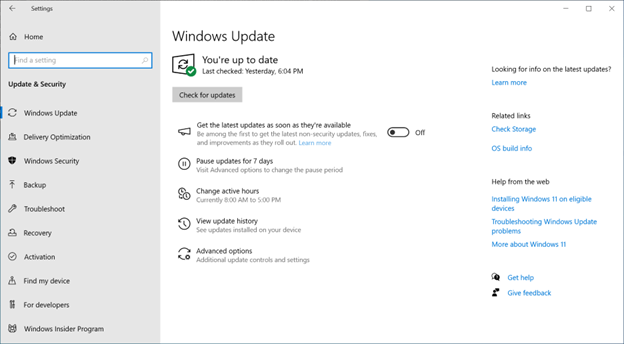
For most eligible Home and Pro machines, the practical route is Windows 11 version 25H2. Microsoft’s release information page identifies 25H2 as a generally available Windows 11 release and gives its own servicing timeline. The upgrade path should be offered in Settings > Windows Update. Select Check for updates and read the option presented to that particular device. Do not download an installer from an unofficial mirror simply because a search result promises a faster route.
An update offer is evidence that Microsoft considers that device ready for that route. If it is not offered, stop and investigate rather than forcing the upgrade. The reason may be hardware eligibility, a compatibility safeguard, limited storage, a management policy, an incomplete earlier update, or a staged rollout. Those are different problems with different remedies.
For teams using Windows Update for Business, Intune, or another management platform, use the organisation’s approved deployment process. A managed machine may have deferral policies, feature-update rings, or security controls that should not be bypassed from the local Settings screen. A local administrator can create a support problem for the whole team by treating a managed endpoint like a personal PC.
Windows 11 26H1 is also listed by Microsoft as a current release, but it is not automatically the right target for every device. Choose the version your organisation has tested and approved. The immediate requirement is to move consumer and Pro 24H2 devices onto a supported version before their 13 October deadline, not to chase the newest label without a compatibility plan.
💾 Protect the work before changing the system
An operating-system upgrade is normal maintenance, but normal maintenance can still expose an old problem: a failing drive, an unknown BitLocker recovery key, a full disk, an expired cloud login, or a local-only file nobody copied. Treat backup and recovery preparation as part of the update, not as an optional extra.
Check that work files are synchronised to their intended service and can be opened from another device. For local project folders, create a separate backup according to the business’s retention policy. Confirm the owner can sign in to the account that controls disk encryption and recovery. If BitLocker is in use, ensure the recovery key is held in the approved account or management system, not only on the computer being changed.
Then check free storage. Feature updates need working space for downloaded files, temporary installation files, and rollback material. Clearing old downloads may help, but do not remove a project folder or browser profile just to make an update fit. If the device is routinely near capacity, that is a capacity issue to fix, not a reason to gamble with an upgrade.
Finally, list the software that cannot fail on the following morning: accounting, design, remote access, printer tools, VPN, password manager, endpoint security, camera or scanner drivers, and any application used to administer client sites. Record the current version and where its installer or support contact is located. The list makes post-upgrade checks shorter and recovery less improvised.
🧪 Test the small set of things that earn money

A small business does not need a laboratory to test a Windows feature update. It does need a repeatable check based on real work. Pick one lower-risk machine that resembles the others, update it first, and ask its user to perform a short set of ordinary tasks after the restart.
For a web studio or online seller, that check might include signing in with the approved password manager, opening the browser profiles used for work, connecting to the VPN, accessing email and calendar, opening a shared project folder, sending a test print, joining a video call, and logging into a staging site with multi-factor authentication. If a device relies on a scanner, label printer, accounting token, or specialist display, test that exact equipment.
Do not turn the pilot into a hunt for an impossible guarantee. The point is to find the risks that matter to this team before several devices are changed at once. Write down what passed, what needed a restart, and what needs a vendor check. If the pilot exposes a serious issue, pause the broader rollout and use the information to decide whether another supported Windows version, a driver update, or replacement hardware is required.
Microsoft’s release-health pages should be part of the check. They list known issues, affected platforms, originating updates, and mitigation status. Reading that page before a rollout is more useful than relying on social-media anecdotes because it identifies the exact version and update involved.
⚠️ Read known issues as operating instructions
As of 1 September 2026, Microsoft documented a problem affecting Microsoft Teams and the new Outlook for Windows on some ARM-based devices after August security updates. Microsoft says it is most likely on new or freshly imaged PCs that have not installed Microsoft Store updates; classic Outlook, Word, Excel, and other apps are not known to be affected. The affected Windows 11 versions include 24H2, 25H2, and 26H1.
The documented workaround is specific: open Microsoft Store, choose Downloads, select Check for updates, and install Auto Super Resolution Package version 1.0.19.0 or later. Microsoft marked the issue mitigated, while saying it is working on a future Windows update. That is a useful example of why the operating system alone is not the whole endpoint. Store-delivered components can matter to a business workflow too.
Microsoft also lists a confirmed 24H2 issue in which custom cursor settings can intermittently reset on non-English Windows devices after an August 2026 update. That is less serious than a login or data-access failure, but it is still worth noting for design teams whose accessibility or input settings are deliberate. The right response is proportionate: document it, tell users where to restore their preferred cursor settings, and watch Microsoft’s status page for a resolution.
The lesson is not that updates should be avoided. Every supported version has occasional known issues, and Microsoft publishes release-health information precisely so organisations can plan around them. A business that postpones every change forever does not eliminate risk; it accumulates unsupported software, deferred fixes, and a larger jump when it finally has no choice.
🔐 Keep browser and account security in the plan
Windows support dates and browser updates are related but separate maintenance tracks. Chrome, Edge, Firefox, password managers, endpoint protection, and business web applications update on their own schedules. Completing a Windows feature update does not mean a device’s browser is current, and a current browser does not extend the support life of an obsolete Windows release.
Make the upgrade window an opportunity to inspect the whole work profile. Remove browser extensions nobody can explain. Confirm that the password manager extension is installed from its official source and that multi-factor authentication is available to the person who needs it. Review the list of browser profiles so a former contractor’s session or a shared account is not silently retained on a personal laptop.
For website administration, avoid using a single browser profile for everything. A dedicated work profile limits accidental cross-over between client logins, personal social accounts, testing tools, and unfamiliar extensions. It also makes a handover simpler: the business can revoke a managed identity rather than trying to recover access from a browser that mixes personal and client data.
A sensible post-upgrade check is therefore short but concrete: confirm the operating-system version, run Windows Update again, update Microsoft Store apps where relevant, restart if requested, update the browser, and test the accounts that control money, domains, hosting, email, analytics, and publishing. Record exceptions instead of trusting memory.
🧰 Plan for devices that cannot move cleanly
Not every device will take the same path. Some machines may not be eligible for the chosen Windows release. Others may have an application, driver, or peripheral that has not been tested. A clear exception plan is safer than hiding those devices at the bottom of a spreadsheet.
First, establish the fact. Capture the Windows Update message, hardware model, current version, available storage, and the business function of the device. Then decide whether the remedy is a supported upgrade, a vendor update, a temporary replacement, a move to a different managed device, or retirement. Do not disable security features or install unsupported modification tools merely to keep an old PC in service.
If a device genuinely must remain on 24H2 for a short period, treat it as a documented risk rather than a forgotten computer. Restrict the accounts it can access, keep backups current, avoid using it for high-value administration, and set a firm replacement or remediation date. Those controls do not restore Microsoft support. They only reduce exposure while a real solution is completed.
For a freelancer or microbusiness, replacement may feel costly. Compare that cost with a work stoppage caused by an inaccessible account, compromised browser session, or a laptop that fails during an urgent client change. The useful calculation is not “can this PC still turn on?” It is “can this device safely hold the access our business depends on?”
📣 Give people a short, usable update notice
Users do better when they know what to expect. A rollout message should name the date, the action window, the expected restarts, the backup requirement, and a contact route for problems. It should not promise that every update is invisible or tell people to ignore warnings. Plain instructions reduce both fear and improvisation.
For example: “Your Windows 11 device is scheduled for a supported-version update this week. Please save and sync work files before the agreed window, leave the device connected to power and internet, and do not begin the update while you are presenting or processing an order. Afterward, sign in to email, the password manager, VPN, and your normal work tools. Report a problem with a screenshot and the device name.”
That message tells people what success looks like. It also protects the person coordinating the update from receiving an unhelpful “my laptop is broken” report with no device name, no time, and no indication of which task failed.
✅ The practical deadline checklist
The 13 October 2026 date is not a reason for a dramatic overnight migration. It is a reason to start a bounded maintenance task now. A small team can finish it in stages: inventory, back up, pilot, roll out, verify, and handle exceptions. Each stage leaves a record that makes the next one easier.
Use this checklist:
- Identify every Windows 11 24H2 Home or Pro device and its owner.
- Confirm the edition and version with Settings or
winver. - Back up work and verify approved account and recovery access.
- Test the chosen supported release on one representative device.
- Review Microsoft’s known-issues page before widening the rollout.
- Upgrade during a planned window, then test the real work stack.
- Track exceptions with an owner and a date, not an open-ended note.
🧾 Keep evidence of completion
An upgrade is complete only when the team can show what changed. After each device restarts, record the resulting Windows version and build, the completion date, and the outcome of the agreed work checks. A short note such as “25H2 installed, VPN, browser profile, shared drive and printer checked” is more useful than an unverified green status in a chat.
Keep this record separate from user credentials. It should answer practical questions: which machine was updated, which release it now runs, whether the user tested normal work, and whether an exception remains. If a device later reports a fault, the timeline helps distinguish a new issue from an earlier condition.
For managed fleets, this information may already live in the device-management platform. For a five-person business, a restricted spreadsheet is enough. The standard does not need to be complicated. It needs to be consistent, available to the person responsible, and reviewed before the support deadline passes.
The same record makes the next feature-update cycle less expensive. It identifies older hardware, recurring storage constraints, applications that needed vendor attention, and people who need clearer update notices. Maintenance becomes a routine based on evidence rather than a scramble triggered by an end-of-support message.
🤝 Escalate the right problems early
Some upgrade problems belong with a software vendor, a managed-service provider, or Microsoft support. Escalate with useful facts: device model, Windows edition and build, the update or error message, time of failure, a screenshot with sensitive information removed, and the exact business task affected. Avoid repeatedly rebooting or making random registry changes before capturing that evidence.
For a client website, keep the update task distinct from production changes. Do not combine a laptop upgrade window with a domain migration, a payment-platform change, or a major deployment unless there is a compelling operational reason and a tested rollback plan. Separating changes makes a fault easier to isolate and reduces the number of accounts that must be touched at once.
This approach is intentionally modest. It gives a small business a way to move out of Windows 11 24H2 support without pretending every computer has identical needs. The deadline is fixed. The practical response is a measured sequence of checks, ownership, and documented decisions.
The best outcome is intentionally boring. By 13 October, no active Home or Pro work device should be relying on Windows 11 24H2 for security maintenance. The team should know what version it runs, where its data is backed up, and who can act if an update exposes a genuine compatibility problem.
Sources: Microsoft Windows 11 release information; Microsoft Windows 11 24H2, 25H2, and 26H1 release-health pages; Microsoft Windows Message Center; Microsoft Update Windows guidance.